
Install guide · Any website
Add an AI chatbot to Any website
If you can edit your site's HTML, you can add the widget: paste one snippet before the closing body tag of every page, or of the template they share.
Add the chat widget in 4 steps
Copy your snippet
In your ZavienGPT dashboard, open Settings → Channels → Chat widget → Installation, and choose Copy code. The snippet already contains your organisation's ID.
Find your shared template
Most sites share a footer or layout file across pages. Open it, or each page's HTML if every page is separate.
Paste the snippet before </body>
Paste your snippet just above the closing </body> tag.
Upload or publish
Upload the changed files, or publish from your site builder's custom code setting.
One snippet. Live in minutes.
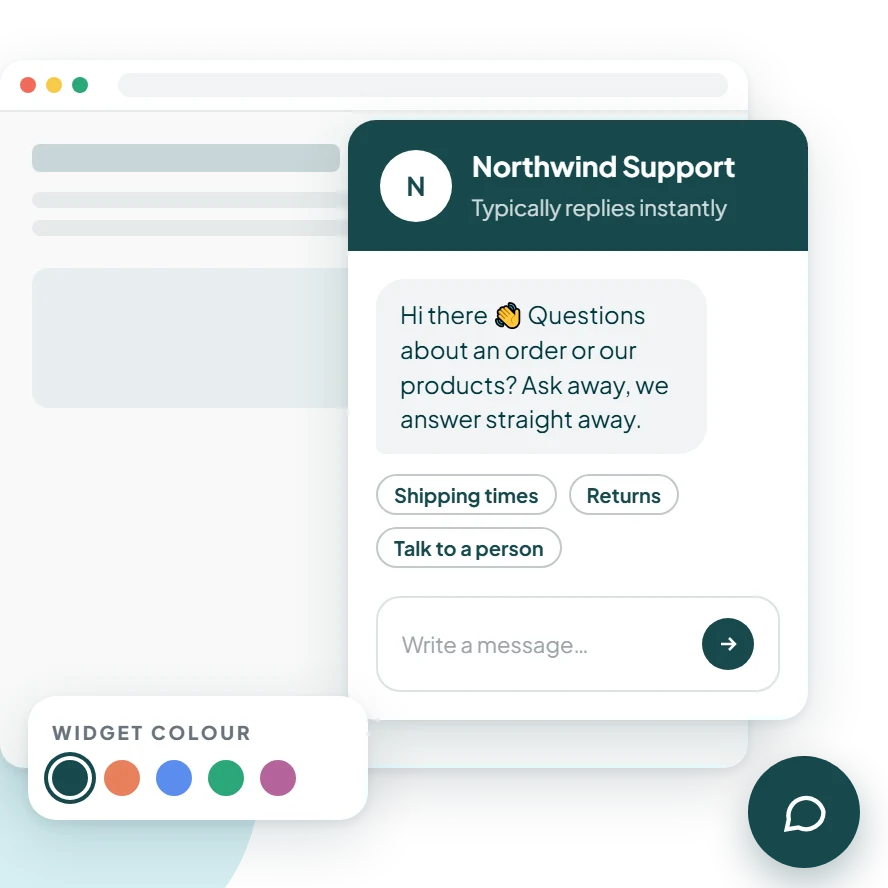
Paste one line before the closing body tag of your site and the chat widget appears on every page. Colours, greeting, office hours and the AI agent are all set from your dashboard, with no more code.
Get your snippet<script
async
src="https://widget.zaviengpt.com/widget.js"
data-organization-id="YOUR_ORGANIZATION_ID"
></script>Check it's working
Open your site in a new window
Visit any page of your live site. The chat launcher appears in the corner within a few seconds.
Send a test message
Ask a question your knowledge base covers. The AI agent answers, and the conversation shows up in your inbox.
Any website questions, answered.
WordPress
Add the chat widget to every page of your WordPress site with a free header-and-footer plugin, so it stays in place when your theme updates.
Install on WordPressShopify
Add the chat widget to your Shopify theme so shoppers can ask about shipping, returns and sizing on every product page and at checkout's door.
Install on ShopifyWix
Wix lets you add a script to every page from your site's settings. Paste the snippet there once and the widget shows across your site.
Install on Wix